
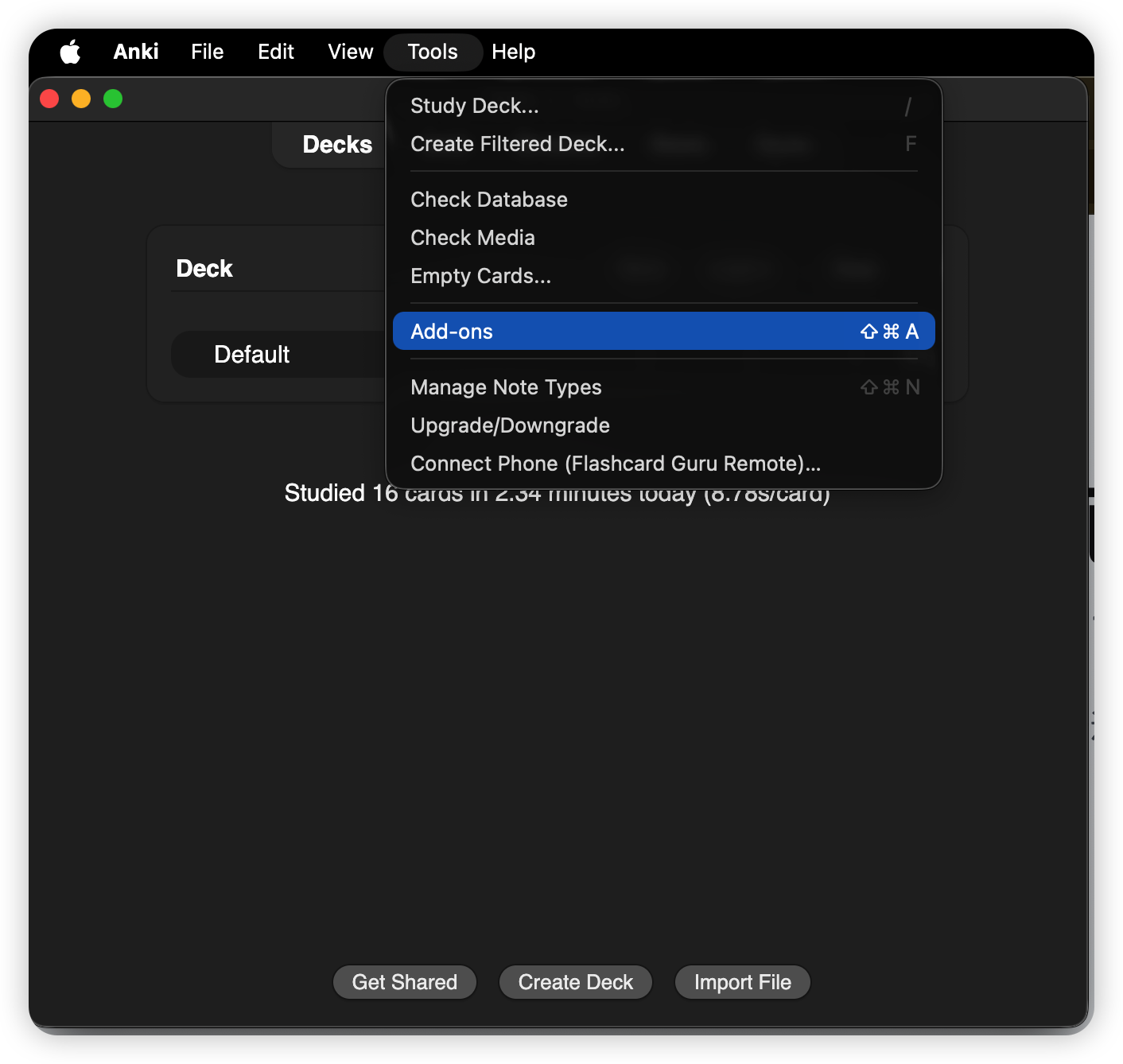
On your Mac, open Anki and choose Tools → Add-ons.
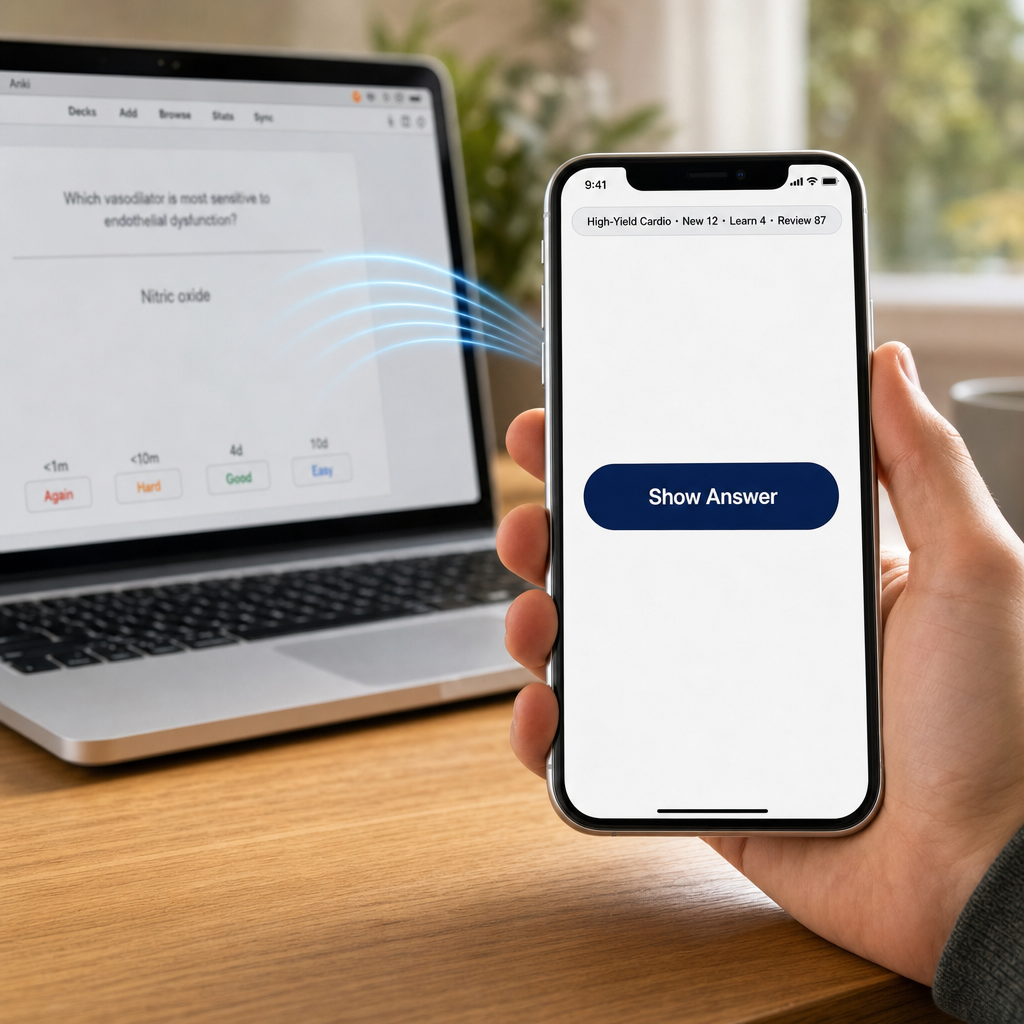
Pair your iPhone with Anki Desktop in 10 seconds via QR code, then drive Show Answer / Again / Hard / Good / Easy from your couch, treadmill, or wherever you're studying. Pair a cheap 8BitDo controller with your phone and it drives desktop Anki through Guru — no Contanki, no Karabiner, no mode hunting.
Tools → Add-ons → Get Add-ons… and paste this code:
Tools → Connect Phone (Flashcard Guru Remote)… — a QR code appears.Settings → Anki Remote → Pair with Mac — scan the QR.Follow the same flow shown in these screenshots: install the add-on in Anki Desktop, restart Anki, open the QR pairing window, then scan it from Guru.
On your Mac, open Anki and choose Tools → Add-ons.
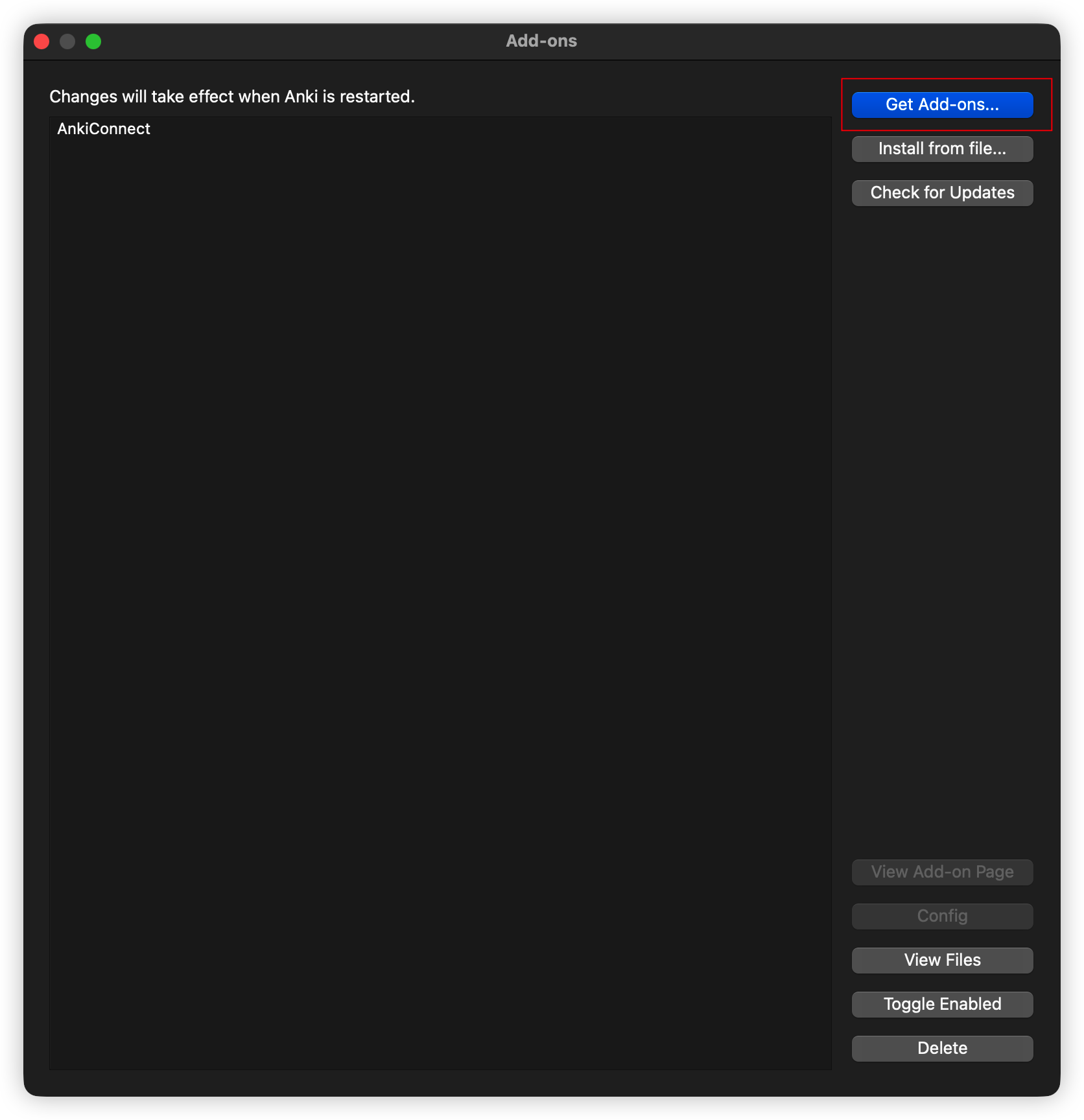
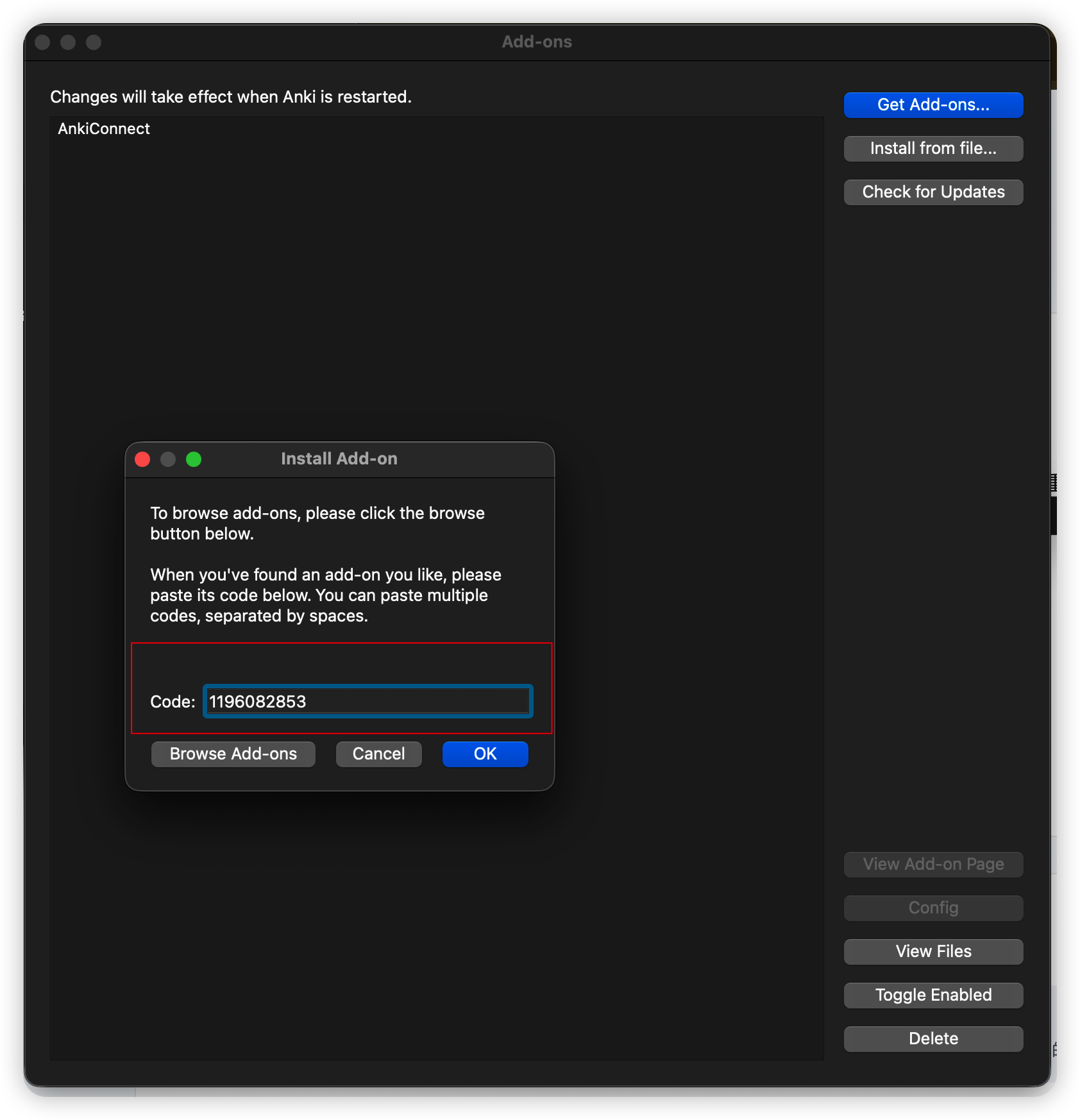
Click Get Add-ons…, paste 1196082853, then confirm.
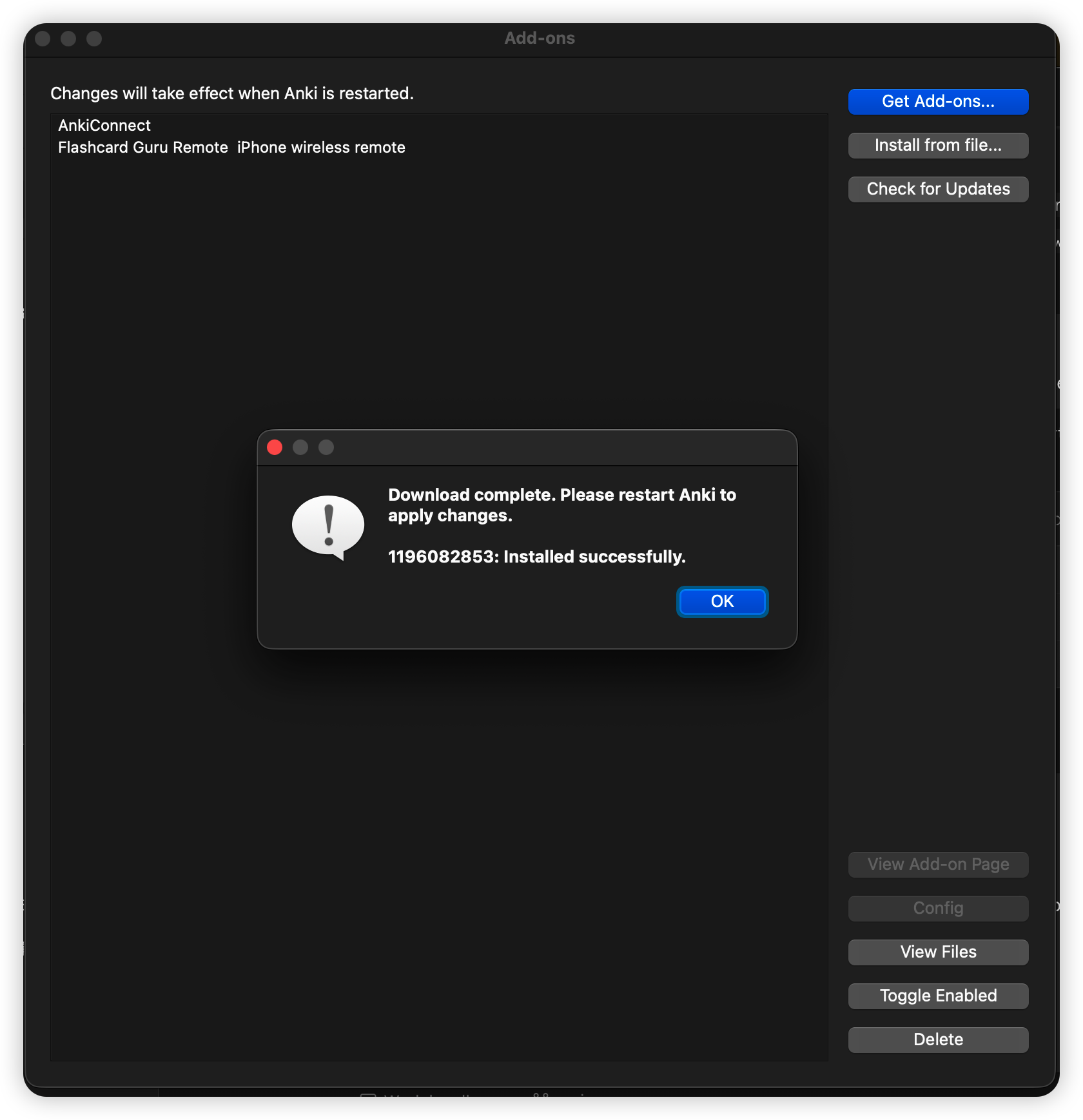
After the install succeeds, restart Anki so Flashcard Guru Remote appears in the Tools menu.
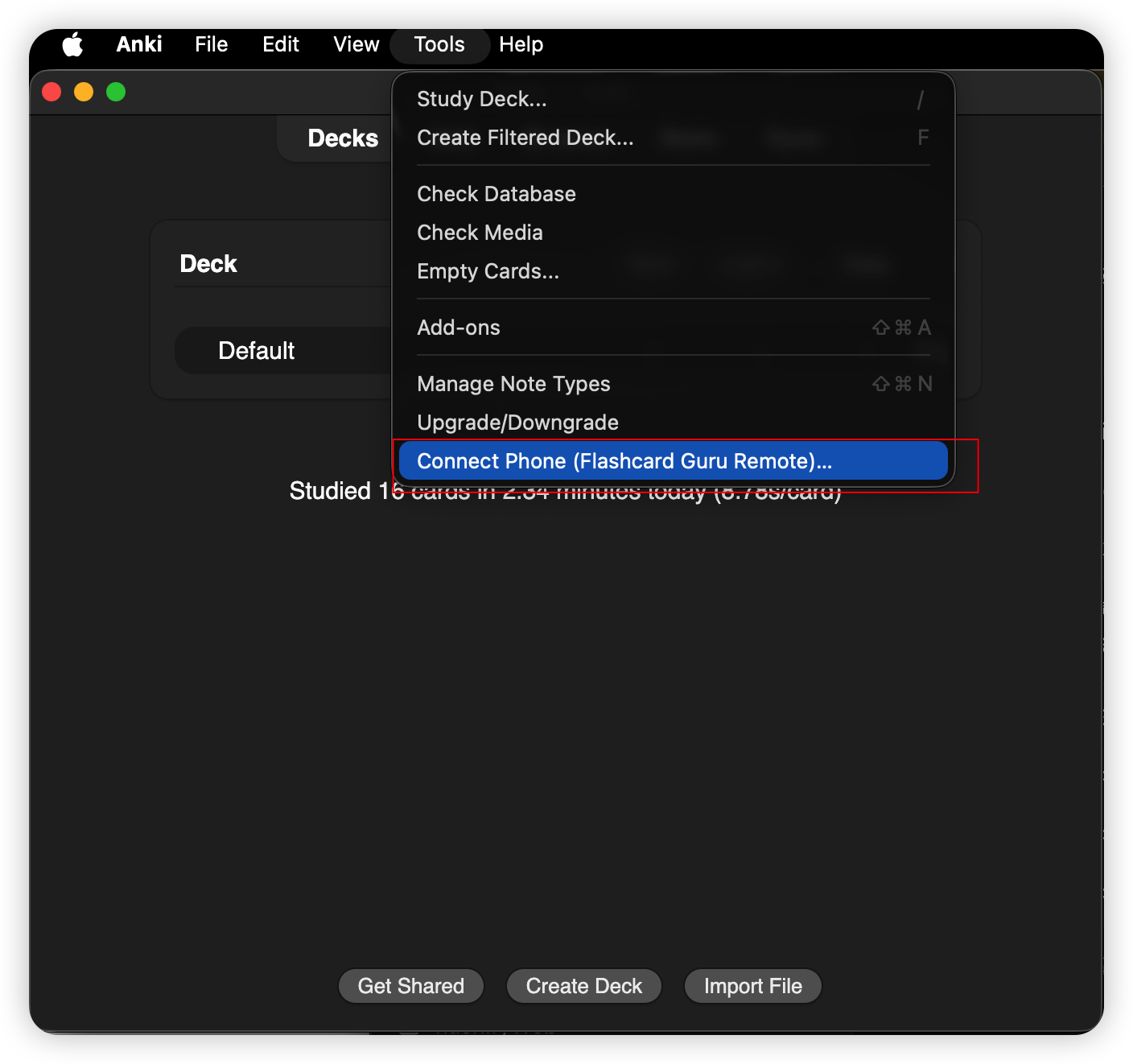
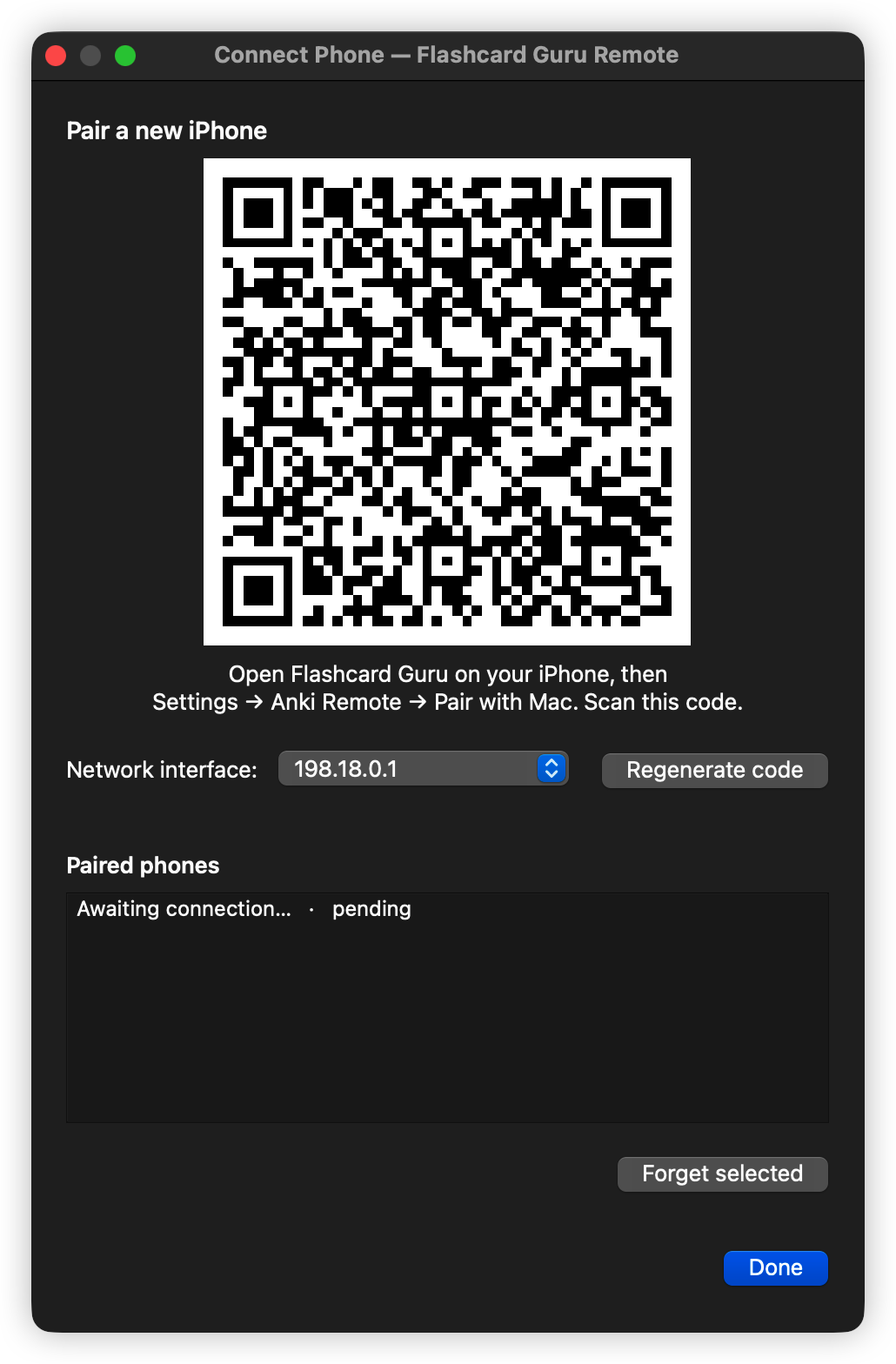
Open Anki again and choose Tools → Connect Phone (Flashcard Guru Remote)….
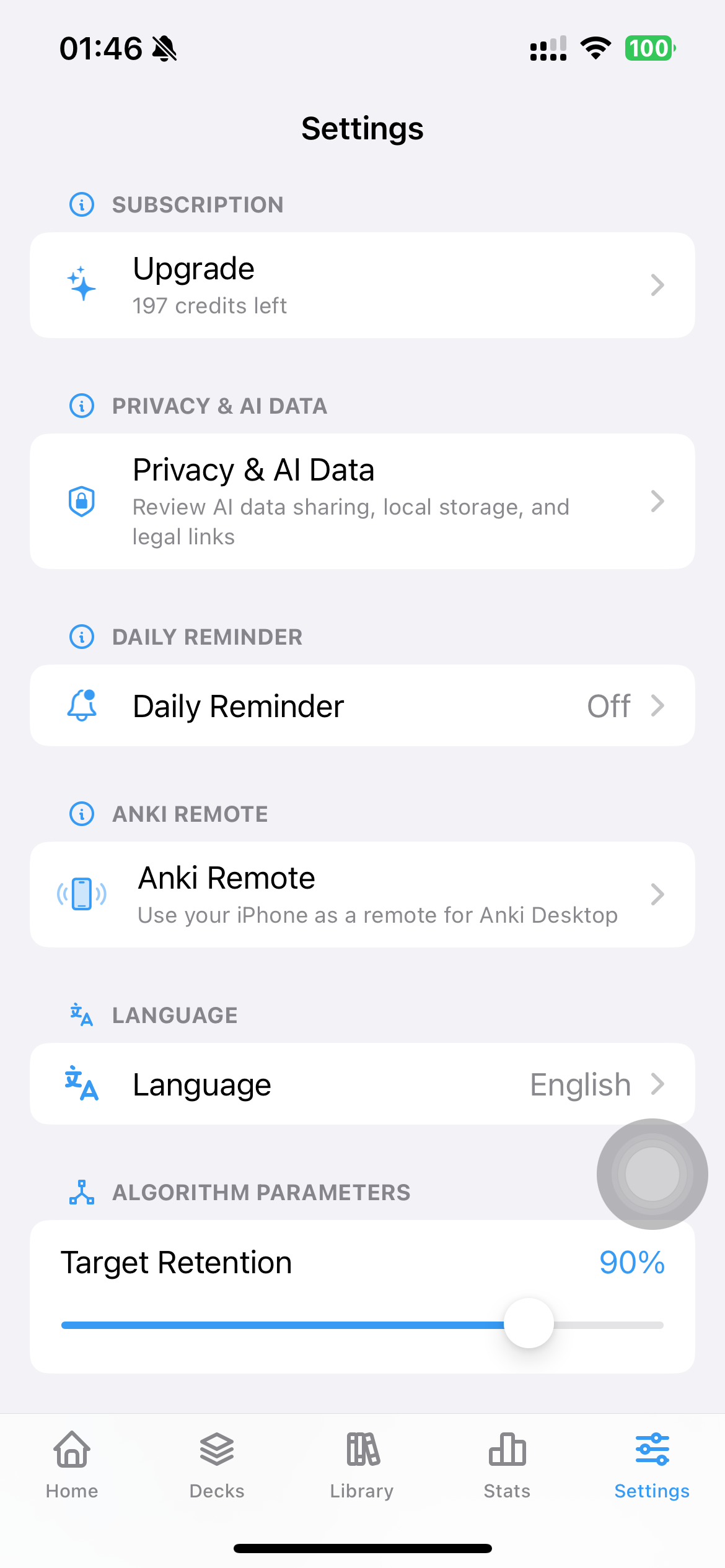
In Guru, go to Settings → Anki Remote.
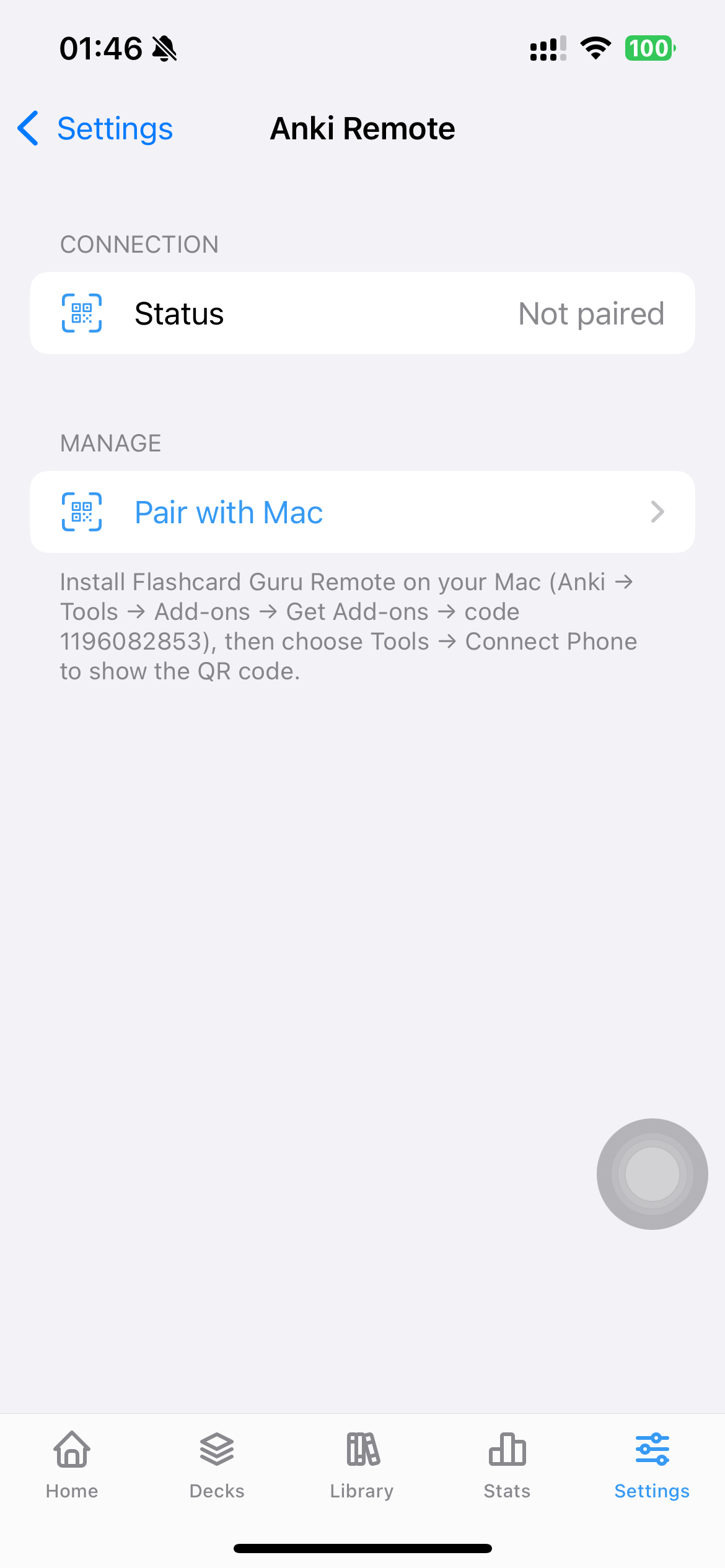
Tap Pair with Mac, scan the QR code on your Mac, and the connection is ready.
Plug a controller into your iPhone (USB-C or Bluetooth) and Guru forwards the buttons to Anki Desktop:
A → Good · B → Again · X → Hard · Y → EasyR1 → Show Answer · L1 → Replay · Options → Undo1 / 2 / 3 / 4 → Again / Hard / Good / EasySpace → Show Answer · R → Replay · Z or U → UndoGuru reads Apple's GCExtendedGamepad profile, which an 8BitDo Zero 2 exposes in Mac mode (A+START) and a Micro in S mode, and it also listens to GCKeyboard for the keys 1–4, Space, R and Z/U, so a pad remapped to those keys works too. (AnkiMobile can use the same pads in gamepad mode with a digital D-pad; the difference here is that nothing has to be configured on the Mac.) New to controllers? See the Contanki setup guide for driving desktop Anki from a gamepad, or connect an Anki remote on a Mac.
There's no single "best anki remote" — there are four honest setups, and which one wins depends on where you review. Here's how a phone clicker, a game controller, a cheap 8BitDo pad, and a dedicated hardware remote compare for plain grading:
| Setup | Cost | Where it works | Best for |
|---|---|---|---|
| Your iPhone (Guru) | Free | Phone → Anki Desktop over Wi-Fi | Reviewing anywhere — and it drives an 8BitDo pad with nothing installed on the Mac |
| Game controller + Contanki | Free if you own a pad | Anki Desktop only | Full desktop control: mouse, menus, per-screen button maps |
| 8BitDo pad, Keyboard Mode | ~$20 | Any device, iPhone and iPad included | The cheapest pocketable clicker |
| Dedicated remote (StudyRemote & co.) | ~$30–40 | Anything that reads a Bluetooth keyboard | A single-purpose gadget, nothing to configure |
Every route maps the same buttons — Again / Hard / Good / Easy plus Show Answer — so choose on cost and where you study, not features. Already own a controller? Start free with Contanki on desktop, or use your phone as the remote right here.
Tools → Add-ons shows the version; Check for Updates pulls newer ones from AnkiWeb.Step-by-step walkthroughs for each setup: