
Anki on iPad: Best Apps, Apple Pencil & Magic Keyboard Setup
.apkg decks and optimizes for the iPad's larger screen. The iPad offers a superior Anki experience thanks to Split View for studying alongside notes, Apple Pencil for drawing on image occlusion cards, and Magic Keyboard for hardware shortcuts.
Why use Anki on an iPad?
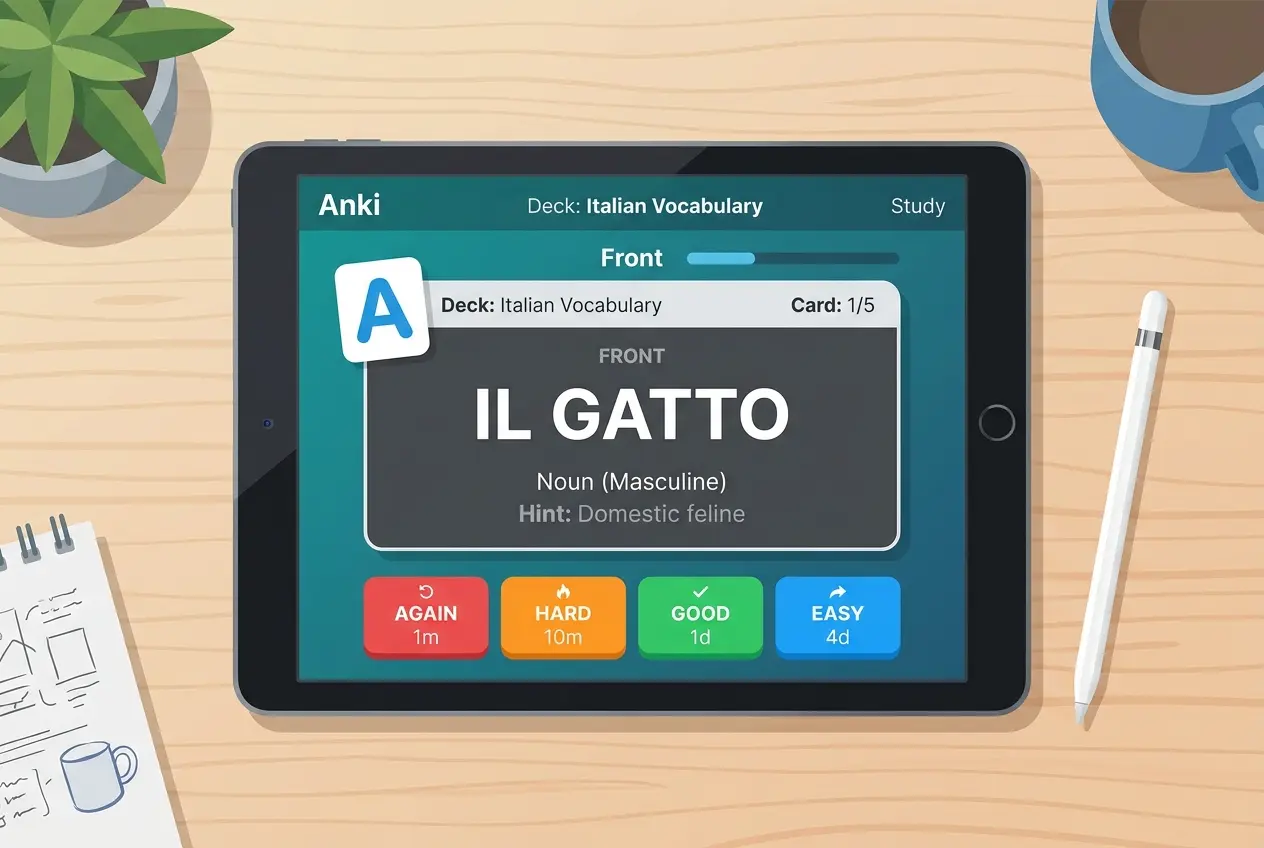
While many use Anki on their phones or laptops, the iPad sits in the sweet spot for flashcard reviews — especially for medical students, language learners, and anyone dealing with image-heavy decks like AnKing.
- A bigger canvas for images: Anatomy atlases, pathology slides, and image-occlusion cards are far easier to read on an 11–13″ screen than on a phone.
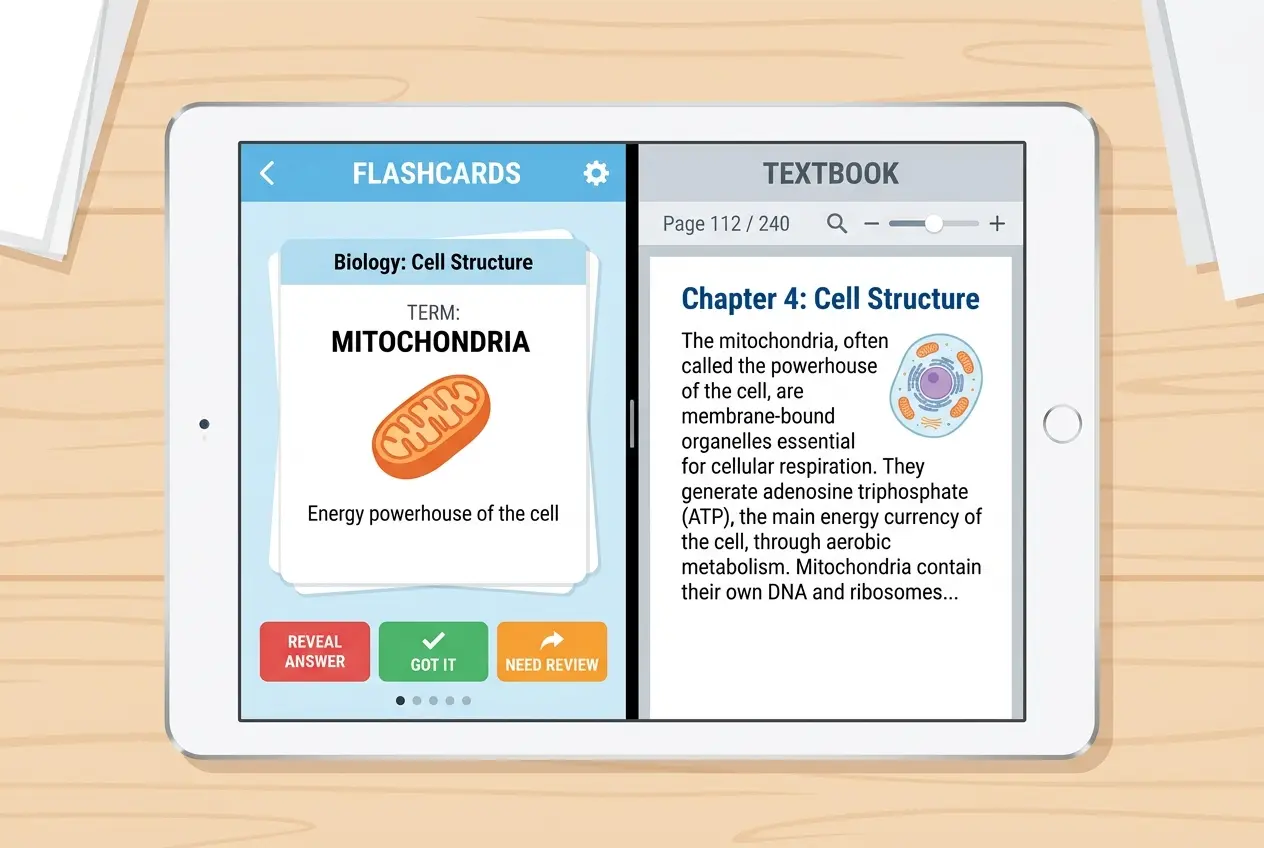
- Split View and Stage Manager: You can keep a lecture PDF, textbook, or your notes open on one side of the screen while reviewing or creating cards on the other, without app-switching.
- Apple Pencil support: Annotate a card, sketch a recall diagram from memory, or mark up an image-occlusion card by hand.
- Hardware-keyboard shortcuts: If you have a Magic Keyboard or a folio, you can use
1/2/3/4to grade cards andSpaceto flip them. It's the same fast workflow as the desktop, but portable.
The three ways to get Anki on iPad
Because iPadOS shares its foundation with iOS, the options for Anki on the iPad are identical to the iPhone, but the bigger screen changes which one might feel best for you.
Option 1: AnkiMobile (The Official App)
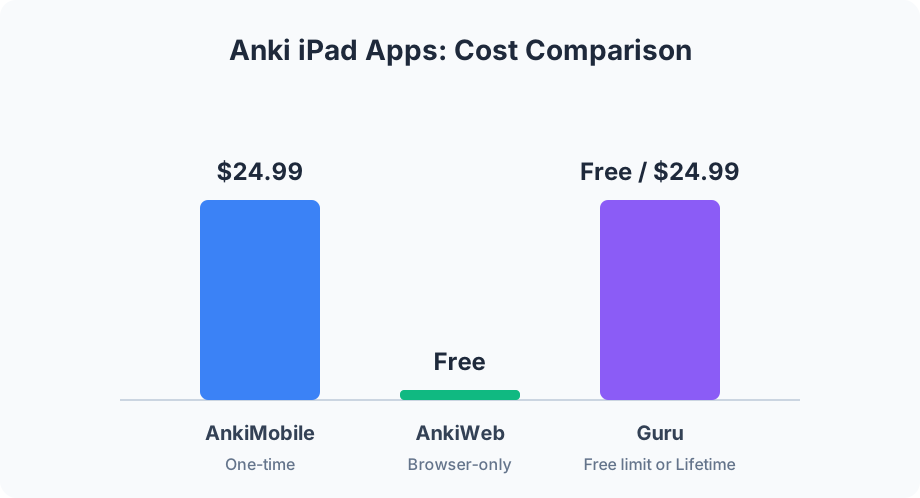
AnkiMobile is the official companion app to desktop Anki. It is a universal app, meaning one $24.99 one-time purchase covers both your iPhone and iPad.
- Best for: Purists who want the exact same SM-2 or FSRS scheduling as the desktop, and full compatibility with complex AnKing add-on templates.
- iPad perks: Excellent support for Split View, full offline review, and media is stored locally so those large image-occlusion decks load instantly.
- Trade-offs: The interface is powerful but utilitarian, and you still need the desktop app for heavy deck editing or organization.
Option 2: AnkiWeb (The Free Option)
You can always open Safari on your iPad and log in to ankiweb.net.
- Best for: Trying out Anki on your iPad before committing to a paid app, or for occasional reviews when you don't have your laptop.
- iPad perks: It’s free and runs in any browser tab.
- Trade-offs: No offline review. If you're on an airplane or commuting without Wi-Fi, you can't study. The touch targets in the browser can feel clunky, and gestures aren't native.
Option 3: Guru (The Native Alternative)
Guru is a modern, native iOS and iPadOS app built specifically for touch screens. It imports your standard .apkg files directly using Anki's engine, meaning your images, cloze deletions, and FSRS scheduling state are all preserved.
- Best for: Users who want a faster, touch-first experience, Cram Mode, and built-in AI tools to turn notes into cards.
- iPad perks: Excellent Split View support, modern UI that takes full advantage of the screen, and importing is incredibly fast.
- Trade-offs: Importing and daily review are free (up to 5 top-level decks, imported or created combined — importing into an existing deck is still free). Pro features like editing, sync, Study Lock, and unlimited decks cost $4.99/month, $39.99/year, or a $24.99 lifetime purchase.
Feature Comparison
| Feature | AnkiMobile | AnkiWeb | Guru |
|---|---|---|---|
| Price | $24.99 one-time | Free | Free import/review, Pro from $4.99/mo |
| Native iPad App | Yes | No (Safari) | Yes |
| Offline Review | Yes | No | Yes |
Import .apkg |
Yes | Via Desktop | Yes (direct on iPad) |
| Scheduler | SM-2 / FSRS | SM-2 / FSRS | FSRS |
| Hardware Keyboard | Yes | Yes | Yes |
| Apple Pencil | Yes (scratchpad) | No | Yes (scratchpad) |
Using Apple Pencil and Magic Keyboard
The real power of the iPad comes from its accessories.
Magic Keyboard (or any Bluetooth keyboard):
You don't need to tap the screen at all. Press Space to reveal the answer, then use 1 (Again), 2 (Hard), 3 (Good), or 4 (Easy) to grade the card. This is incredibly fast and saves your thumb from fatigue during long review sessions. It is the exact same workflow as using a wireless Anki Remote, but built right into your case.
Apple Pencil: When studying complex pathways, anatomy, or language characters, active recall is best done by physically drawing the answer. Apps like AnkiMobile and Guru feature a "scratchpad" mode. You can draw your answer on the screen with your Apple Pencil before flipping the card to see if you got it right.
How to move your decks to your iPad
If you choose a native app, getting your decks onto the iPad is straightforward:
- Export from Desktop: Open Anki on your computer. Right-click the deck, choose Export, select Anki Deck Package (.apkg). Make sure Include scheduling information and Include media are checked.
- Transfer to iPad: AirDrop the file to your iPad, or save it to iCloud Drive.
- Open: Tap the file in the iPad's Files app and open it in your chosen app (like Guru or AnkiMobile). It will import with your history and images intact.
For a more detailed walkthrough on this process, check out our guide on how to import Anki decks.
Ready for a modern iPad Anki experience?
Import your decks in seconds, use Split View and your Magic Keyboard, and review with FSRS. Importing and daily review are free for up to 5 decks.
Get Guru